


How to Add a .75 pt Stroke Preset
John wrote: Has anyone see a way to add more stroke size presets in InDesign? I have a huge project that uses .75 pt and 1.5 pt strokes like a...


John wrote:
Has anyone see a way to add more stroke size presets in InDesign? I have a huge project that uses .75 pt and 1.5 pt strokes like a zillion times. I don’t want to use a style sheet, I want to get into the “guts” of ID and add the 1.5 preset.
Well, up until the last line, the answer would have been “use an object style.” After all, that’s just what object styles are for, and it sounds like it would be perfecct for you. I’m not sure why you don’t want to use an object style, but I’ll just go with it and tell you the secret:
No, there is no way to add a preset stroke width that would appear in the Weight pop-up menu. At least, no way that I know of. But there is one way you can fake it.
From the Stroke panel flyout menu, choose Stroke Styles, then click New. In the Type pop-up menu, choose Stripe. Now drag one of the little black arrows on the left side away (to make it disappear), and drag the other black arrow up to 50%:

You’ve just created a custom stripe that is half the width of a normal stroke. Click OK a couple of times and try applying it to a path or frame. A 1-pt stroke set to this Half Width stroke style will be… .5 pts! Make it 3 pts, and you have your 1.5-pt thick stroke.
These strokes act a little differently than normal because they’re really just filling half the normal stroke area. But with a little practice and judicious use of the Align Stroke buttons in the Stroke panel, you can almost always achieve the effect you’re going for.
One notable caveat, however, is when you’re using arrowheads. In this case, they may appear slightly off-center. Here’s a circle “End” cap, which looks slightly off with the Half Width stroke:
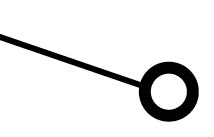
Oh well… back to object styles!
This article was last modified on December 18, 2021
This article was first published on March 20, 2008
Commenting is easier and faster when you're logged in!

Recommended for you
How to Add Page Numbers?
Every once in a while, an question comes in from a new user that brings you back...
Use Find/Change to Add Text to Many Table Cells
Will asked: Is it possible to ‘Add/insert’ at the end of a sentence...
Change a Pantone Swatch Name
Dave wrote us, How do you change a Pantone color name in InDesign? We're trying...