



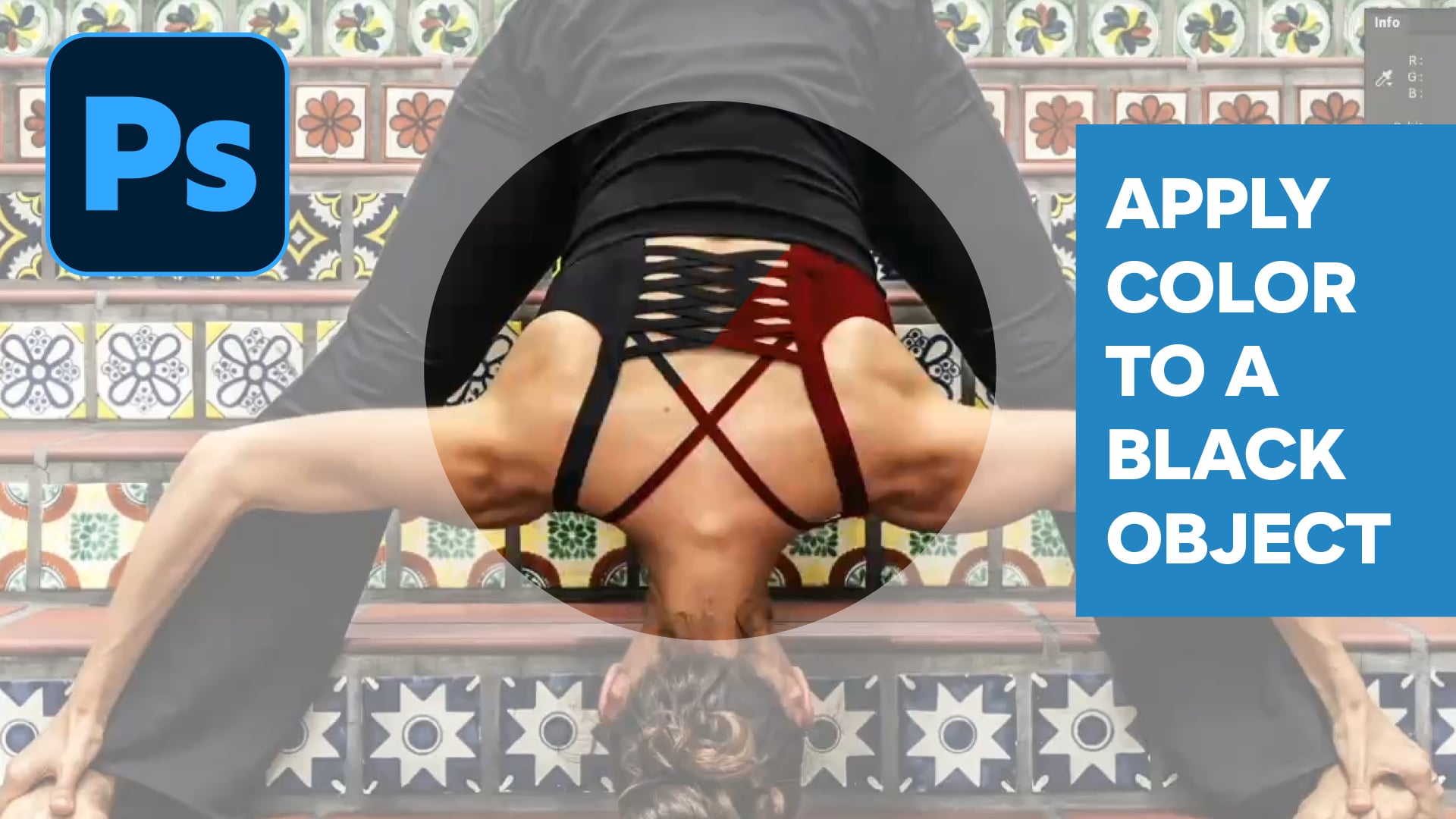
In this Photoshop how-to video, Ben Willmore shares a technique for color adjusting black or white objects. He starts out by using the Object Selection tool to isolate the area he wants to change and the Info panel to find a color formula from a reference image. Finally, Ben explains how to input these values into a Curves adjustment layer to turn the object into his chosen color.
Subscribe to the CreativePro YouTube channel for more helpful design tips!
This article was last modified on July 15, 2026
This article was first published on April 30, 2026
Commenting is easier and faster when you're logged in!

Recommended for you

How to Adjust Colors in Photoshop Using Hue and Saturation
Learn how to manipulate an image’s colors using Photoshop’s Hue and Saturation s...
How to Adjust Colors Using Photoshop’s Contextual Task Bar
Learn how to use the Photoshop Adjust Colors feature to make quick, non-destruct...

Quick Wins: Adjusting Color in Photoshop
Use these five resources to get better at adjusting color in Photoshop