




In this InDesign video, Laurie Ruhlin demos how to anchor a graphic to text, so that the graphic will always travel along with the text. She explains that there are two different types of anchored objects and shows how to achieve each. Laurie even throws in an added way to insert an image within text.
This video is an excerpt from Laurie’s “Saving Time in InDesign with Anchored Objects” session at CreativePro Week 2023.
Subscribe to the CreativePro YouTube channel for more helpful design tips!
This article was last modified on August 29, 2025
This article was first published on May 14, 2024
Commenting is easier and faster when you're logged in!

Recommended for you
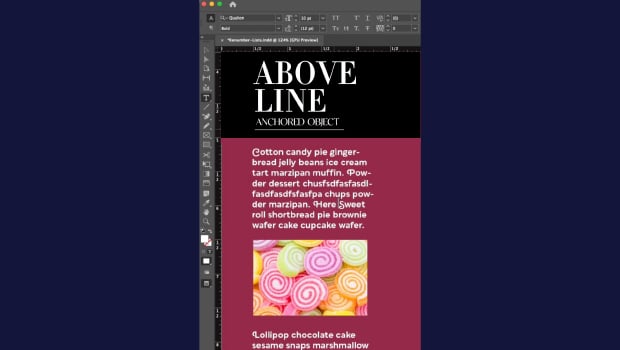
How to Make Graphics Flow with Text in InDesign
Khara Plicanic demonstrates how to add a graphic between paragraphs so it flows...

Nashville in Focus: CreativePro Week 2026 Photo Walks
A look at Music City through the lenses of the CreativePro community
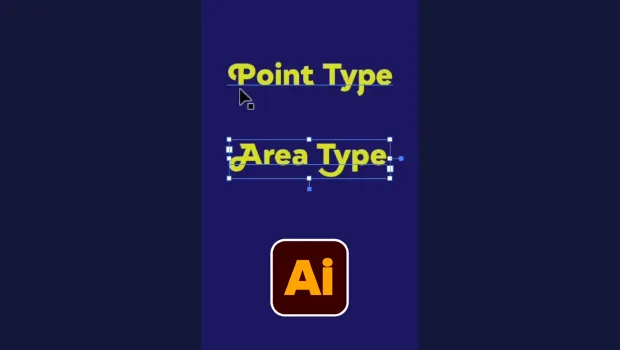
Illustrator’s Two Kinds of Type
Khara Plicanic explains the two kinds of type in Illustrator.