




Everyone likes a good movie, so grab your popcorn and munch on some of these tips and tricks for working with video in InDesign, Acorbat, and Adobe Media Encoder.
1. The best file formats to use for video are H.264-encoded files (MP4 and Mv4) because they’re fully supported within InDesign and Apple’s iOS devices, so your videos can be viewed on an iPad, iPhone, etc. You can also place Flash Video format (.FLV and .F4V) and SWF into InDesign and PDF, but they won’t work on Apple’s mobile devices.
2. Reduce file size by trimming and sizing video clips before placing into InDesign. You should not be scaling video in InDesign.
3. If you own CS6 or you’re a Creative Cloud subscriber you can use Adobe Media Encoder to convert video to different formats, choose an aspect ratio, frame rate, compression level, and more. If you don’t have access to Media Encoder, you can do these same jobs with the open source application Handbrake.
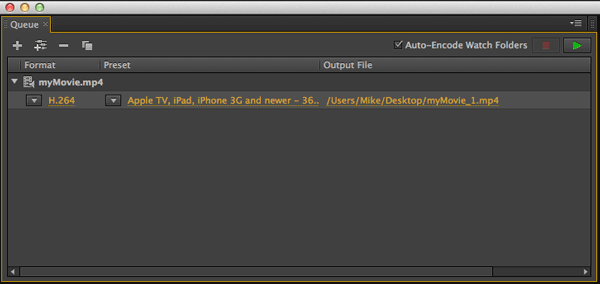
4. You can drag and drop files into the Queue pane of Media Encoder to add them to the processing queue.
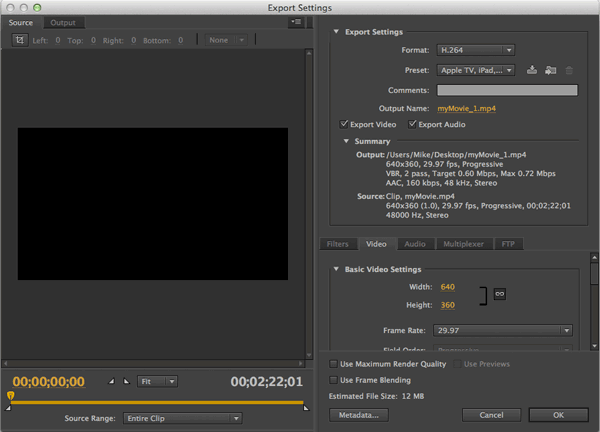
5. You can select a preset group of conversion settings or pick your own customized settings by pressing Cmd+E to open the Export Settings dialog box. You can also Option/Alt click your current choice in the Format or Preset menus.
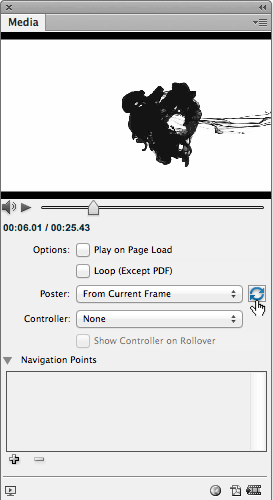
6. With InDesign’s Media panel (choose Window > Interactive > Media) you can set play options, add a controller, and a poster to serve as a static image displayed when the video is not playing.
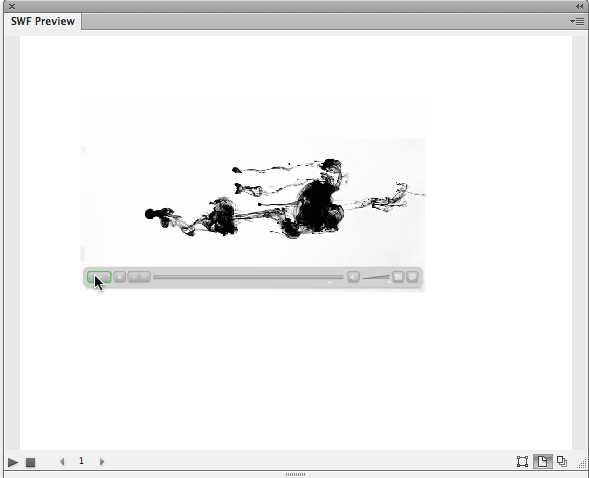
7. You can preview the video inside the Media panel, but you can’t see what the controller looks like there. Instead, use the SWF preview panel where you can see the video and its controls. Use the keyboard shortcut Command+Shift+Return/Ctrl+Shift+Enter to preview the current page. And don’t forget to drag the SWF Preview panel out to a large size so you can actually see the controls.
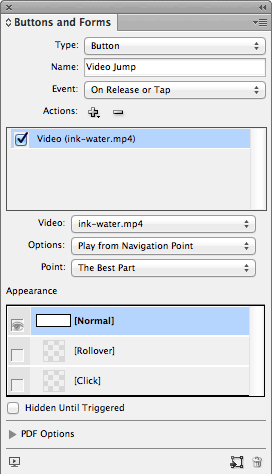
8. You can also set Navigation points in the video that the viewer can use to skip to specific parts. Use the Media panel controls to set the navigation points and then use the Buttons and Forms panel to add a button that plays the video from your navigation point.
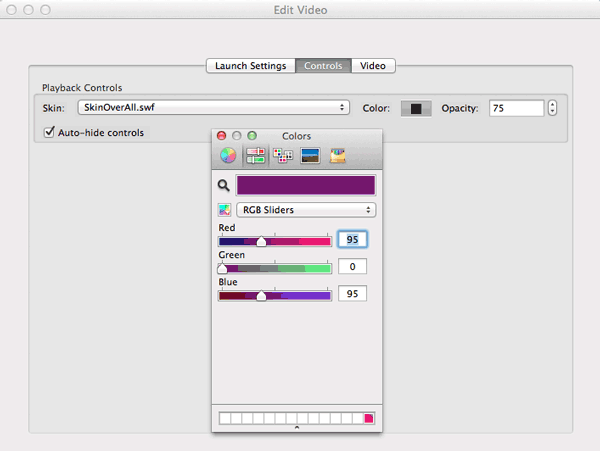
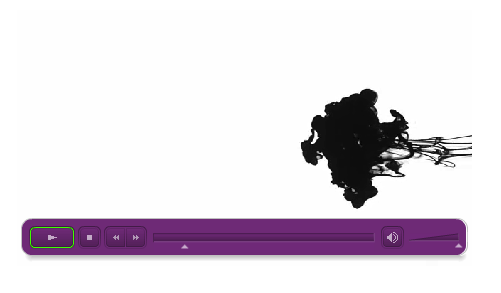
9. If you’re exporting to interactive PDF, you can access more options for the appearance of video controls in Adobe Acrobat than you can in InDesign, including the color and opacity of the controls.
Choose Tools > Interactive Objects > Select Object and double click on the video to open the Edit Video dialog box.
10. If you want to place a streaming YouTube video in an interactive PDF, skip InDesign’s Media panel and instead insert the video directly into the PDF. Choose Tools > Interactive Objects > Add Video. Drag out an area where you want the video to play. Then grab the YouTube video’s embed code. Copy just the value of the src attribute.
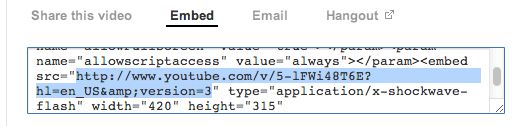
Paste the code into the Insert SWF dialog box in Acrobat and add the suffix .swf
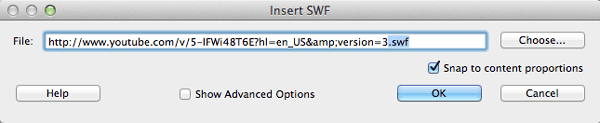
Click OK. The YouTube video now can be played inside the PDF (when you have access to the Internet). Note that the YouTube video will not play in PDF opened on an iPad since SWFs are not supported there.

This article was last modified on January 8, 2023
This article was first published on May 14, 2013
Commenting is easier and faster when you're logged in!

Recommended for you
Make a Grungy Logo in Photoshop
If you’re a seasoned Photoshop user, this little tutorial might not be for...

How to Extract Images with Hair Using Photoshop’s Refine Mask
The following is an excerpt from Speaking Photoshop CS6 by Dave Bate. You can al...

Dehazing an Image in Photoshop
Learn how to rescue images beset by fog and atmosphere with Photoshop's Camera R...