



 This article appeared in Issue 76 of InDesign Magazine.
InQuestion is a regular column devoted to answering your questions about working with InDesign.
Q. In earlier versions of InDesign, I’d rotate a frame, and then select an adjacent frame and drag on the bounding box, relying on the Smart Guide “echo” in the first frame to help me rotate to the same degree. Now I can’t seem to get it to work unless I change the Interface option for “Live Screen Drawing” to “Immediate.” Am I missing something, or have Smart Guides gotten dumb?
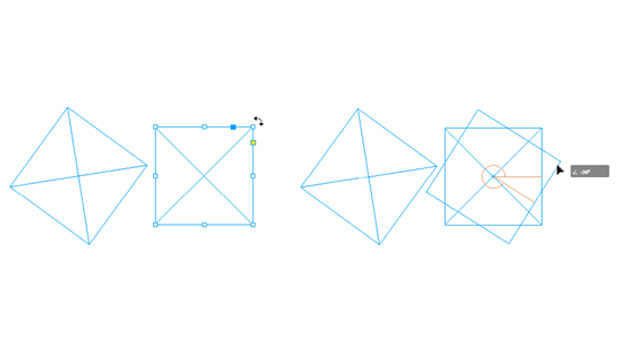
A. Patience, Grasshopper. Really: Since CC 2015, InDesign seems to prefer that you use what’s long been called Patient Mode to awaken the rotation guide “duckbills.” If you position your cursor just outside a corner of a frame and immediately drag to rotate it, you may not see the familiar green Smart Guide angle indicators (Figure 1). It’s not happening to everyone, but you’re not alone—it’s been happening to me, too, along with the majority of students in one of my classes—not seeing those helpful positioning guides. Changing the Live Screen Drawing option (under Preferences > Interface) to Immediate is a fix, but it may slow down your performance, especially if there is large vector artwork in your layout.

Figure 1: If you click and drag a corner of a frame without pausing, you may not see the Smart Guides that indicate matching angles.
Instead, take a deep breath and use Patient Mode. Click and hold down your mouse button for a second before you begin rotating. When the cursor changes to an arrowhead, InDesign is ready
to show you a live preview. When you begin rotating, you’ll see the matching green angle marks, confirming that you’ve magically rotated the frame to the same angle as the adjacent frame (Figure 2).

Figure 2: A pause after clicking the corner of a frame will invoke Patient User Mode, and make the Smart Guides appear when frames are rotated at the same angle.
Commenting is easier and faster when you're logged in!

Recommended for you

InQuestion: Matching Photoshop Colors, Combining Documents, Using Smart Guides
Learn how to troubleshoot and solve common problems in InDesign

Resizing pages with Page Tool and Layout Adjustment
In InDesign CS5 you can resize document pages from any reference point using the...

Tip of the Week: Placing Images at a Specific Size
This tip was sent to Tip of the Week email subscribers on July 23, 2015. Sign up...