




Larissa Zimberof originally posted this information on the Flickr Blog
There are billions of photos on Flickr, which is a whole lotta pretty to look at. But, if you’re a budding photographer, how do you get noticed? And, if you’re looking to use an image for your work, blog, ad campaign or more, how do you find just the right one and make sure you have the appropriate rights to use it?
Flickr members and visitors can work with each other through a new program with Getty Images called “Request to License”. We’ve built this program on the success of our launch of the Flickr Collection on Getty Images just over one year ago.
So, how does it work? Under the Additional Information heading on your public photo pages you’ll see a “Want to license” link. Only you see this link. Visitors to your photos won’t.
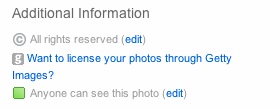
Clicking the link will take you to your settings page where you can decide if you’d like to join the “Request to License” program. Choose the option that best suits your needs and “Save” to remove the “Want to license” notice from your page. If you join, visitors to your public photo pages will see a Request to License link.
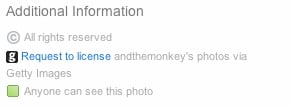
When a prospective licensee sees an image marked for license, they can click on the link and be put in touch with a representative from Getty Images who will help handle details like permissions, releases and pricing. Once reviewed, the Getty Images editors will send you a FlickrMail to request to license your work, either for commercial or editorial usage. The decision to license is always yours.
Ready to join? Go to your account settings or any of your photo pages. If you’re not interested in seeing this on your photo pages you can also turn it off. Get the full scoop in our Getty Images FAQ. If you have feedback let us know in this Forum thread.
Excited to see it in action? Take a look at these photographers who have already joined the program:
* pyrokinetic
* ryanmcginnis
* gracie’s ephemera
* Pink Sherbert Photography
* Jeff Clow
* njekaterina
* pixability
This article was last modified on December 14, 2022
This article was first published on June 22, 2010
Commenting is easier and faster when you're logged in!

Recommended for you
Seeing the Benefits of Accessible Color
Accessible color choices can help your work reach more people—and make you a bet...

P22: New Fonts From Norway
International House of Fonts welcomes Mr. Sverdrup to its roster. He has been a...