



TypeTalk is a regular blog on typography. Post your questions and comments by clicking on the Comments icon above.
Q. How can I avoid importing the formatting in a Word document when I place the text into a design program?
A. Oh, do I feel your pain! When you import a Word document into InDesign or QuarkXPress, you don’t just get letters and numbers. If the author manually applied bold or italics (called local formatting), that formatting comes along for the ride. Same deal if the author used character or paragraph styles. After import, you may find dozens of unwanted styles bloating your Styles panels, which you must now delete, convert, or otherwise clean up.
There are a couple of ways to prevent unwanted Word formatting and styles sneaking into your page-layout application.
Strip styles from the Word document:
• Open the Word document.
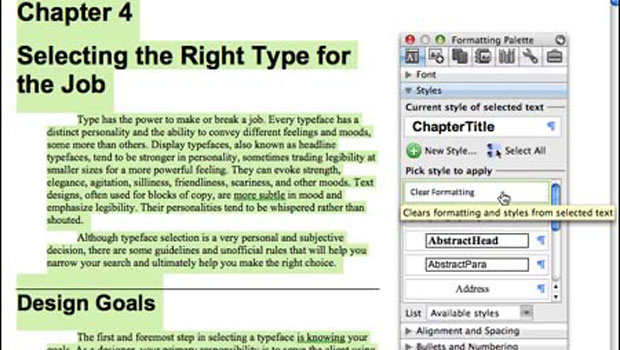
• Highlight all the text.
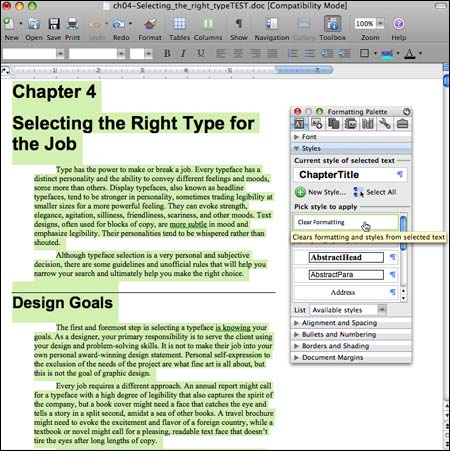
• Select Clear Formatting from the Styles tab of the Formatting Palette.

• Save and close the file. You can now import it into your page-layout app.
Strip Styles from the InDesign or QuarkXPress files:
InDesign CS4
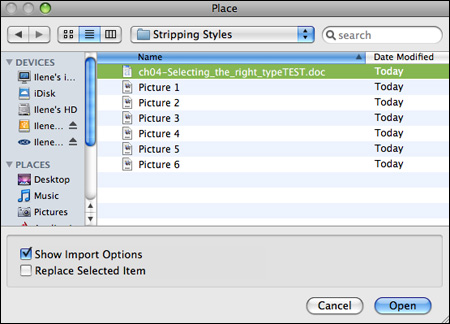
• Go to File > Place.
• Navigate and select (do not double-click) the Word document.
• On the bottom, select Show Import Options, then click Open.
• Select Remove Styles and Formatting under Formatting in Microsoft Word Importing Options window. 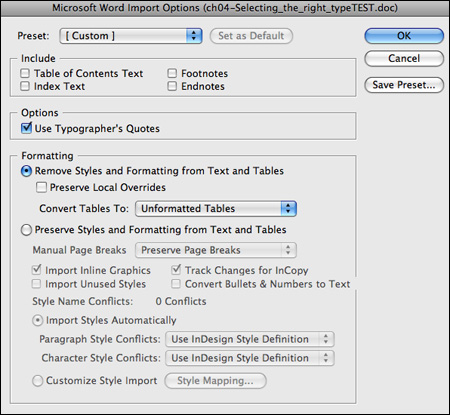
• Click OK, and text will appear without any formatting.
QuarkPress 8
When using the File > Import command, QuarkXPress imports the text formatting even if you deselect Import Styles. So you can either strip them from the Word document as described above and use the File > Import method, or you can Cut and Paste the text, which will strip out the formatting upon placement into your document. If you use the latter, be sure your text has correct smart quotes and dashes, as you will lose the ability to correct these automatically. Note that QuarkXPress does not import Microsoft Word 2008 files that end in .docx, but these can be imported if they are saved as a .doc or an RTF document.
More Word Help
For more in-depth information on working with Word files, check out the articles below:
• Microsoft Word for Creative Pros
You’re a designer, not a text jockey. But sometimes you’re forced to work with Microsoft Word anyway, and when that happens, you’ll be glad to have these tips.
• dot-font: Importing Text
Learn how to import text into a page-layout program and have it come out the way you want it.
• Easy Fixes for Microsoft Word Formatting in InDesign
Two free and easy-to-use scripts convert Word’s local formatting to InDesign’s character styles. Two more retain InDesign formatting when you export text formatted with automatically applied character styles.
Love type? Want to know more? Ilene Strizver conducts her acclaimed Gourmet Typography workshops internationally. For more information on attending one or bringing it to your company, organization, or school, go to her site, call The Type Studio at 203-227-5929, or email Ilene at in**@***********io.com. Sign up for her e-newsletter at www.thetypestudio.com.
This article was last modified on August 12, 2021
This article was first published on June 3, 2010
Commenting is easier and faster when you're logged in!

Recommended for you

How to Add a History Panel to InDesign with Scripts
Wish InDesign had a History panel? Try these scripts that allow you to access al...

InDesign Magazine Issue 88: The InDesign Script-o-pedia
InDesign Magazine issue 88 with articles about the InDesign script-o-pedis, inte...
Adding CC Library Assets to Adobe Comp
Adobe Comp CC is a mobile-only app that gives you the ability to easily work up...