


Getting It Together with PageMaker 7


When asked to name the best DTP program on the market, most professional designers would likely offer up QuarkXPress, and a growing number would advocate Adobe InDesign. For those looking for an easy, inexpensive way to publish spreadsheet or database content, however, Adobe PageMaker 7.0 may be a better choice. The $499 program ($79 upgrade) boasts a brand new feature called Data Merge that allows you to merge in text, data, and even image links from an external data source. These functions help make PageMaker a good choice for a wide variety of content-driven publishing projects, including mail-merge, personalization, and catalog development.
Here we’ll take a quick look at how to put PageMaker 7.0’s new Data Merge feature to work.
Content Is King
Before you can link a PageMaker publication to an external data source, make sure the data file is in a format that PageMaker can read — and that the data are structured in a useful manner.
The file format is the easy part. PageMaker does not currently support native database or spreadsheet formats (such as Microsoft Access .MDB or Excel .XLS). Instead it requires you to create or export a comma-delimited text file in either .CSV or .TXT format.
When you create the data source file, take the time to organize the information properly. You must be sure the data source file contains all the records you need for your publication, because you can link to only one data file from your PageMaker document. We also recommend that you create a separate category (called a field) for each discrete piece of information. In the sample data source shown in Figure 1, notice how each cell contains only one item.
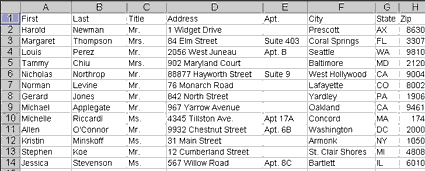
Figure 1: To allow maximum flexibility in how you use your source data, make sure to store only one piece of information — such as first name or last name — in each field of your data file.
This kind of structure provides the most flexibility both within the source application and within PageMaker. For example, preserving zip codes as a separate field allows you to use sorting commands within the source application to arrange the records in numerical order. Presenting the post office with pre-sorted mail by zip code can reduce the cost of postage for large direct mailings.
Separate fields also provide more design flexibility. In the sample document that follows, we have used the customer’s first name in two different ways: in conjunction with the surname as part of the address line, and separately as part of the personalized salutation.
If you create the source file in a true database application, the table field names will automatically become the data field names upon export. However, if you use a spreadsheet (as we did) to create the data source file, you must place the field names in the top row in order to have PageMaker correctly identify them. After you develop a data source file and save it in a suitable format, you can move on to PageMaker to design the publication.
Auto-Address
Our first sample publication is a three-fold self-mailer. We’ll use the Data Merge function to automatically address the mailing panel. This is a straightforward process that will provide a good overview of PageMaker’s Data Merge function.
We begin by drawing a frame on the mailing panel of the brochure. We then open the Data Merge palette. To do so, click through the following menu commands: Window/Plug-in Palettes/Show Data Merge Palette.
Linking the PageMaker publication to an external data source is simple. Choosing the Select Data Source command (found on the Data Merge palette menu) allows us to browse the system for the .CSV file we created earlier. As soon as we select the data source, all of the available field names appear in the Data Merge palette.
To insert a field into the page layout, position the text cursor in the document and click a field name in the Data Merge palette. As you can see in Figure 2, PageMaker always identifies a placeholder field name by surrounding it with double brackets, <<like this>>. We used PageMaker’s standard tools to add supporting text (such as the comma between state and city fields) and to format the appearance of the text block.
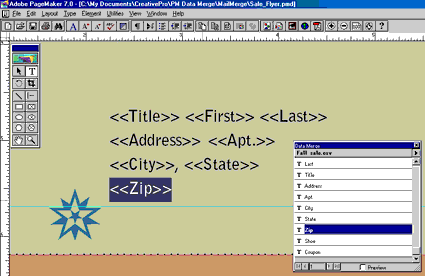
Figure 2: You can add a data field to the current cursor position in your PageMaker document by clicking on the field in the Data Merge palette.
Now we’ll preview the results of the data merge on screen. Select the Preview Records command from the Data Merge palette menu, and use the Go To Record command to cycle through some of the names in your address list. This preview can be an invaluable step, because it may allow us to see that a long address would force an unwanted line break, for instance, so that we could enlarge the text frame to head off the problem.
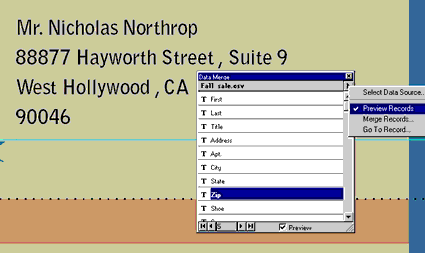
Figure 3: When you preview a Data Merge, PageMaker replaces the placeholder field names with live content from the external data source.
This article was last modified on February 22, 2022
This article was first published on August 21, 2001
Commenting is easier and faster when you're logged in!

Recommended for you

ARTS PDF Announces Nitro PDF Professional 4.9 Upgrade – "The First True Adobe Acrobat Alternative"
ARTS PDF, the award-winning and category-leading developer of "PDF power to...

Make a Realistic Wood Texture in Photoshop
Step 1 Create a new document. The dimensions don’t really matter, but I st...
Heavy Metal Madness: The Creative Pro Next Door
There’s been a lot of action in and around my letterpress print shop the p...