




With this column I am “coming out of the closet.” (No, it has nothing to do with sexuality, despite the recent popularity of “Queer Eye for the Straight Guy” and “Boy Meets Boy.”) Rather my coming-out party is the official recognition of my new Gateway 200 XL laptop machine that sits next to my Apple G4 PowerBook and my G4 Tower.
How did such a Mac-geek such as me wind up buying a Windows notebook? Believe me it was a struggle, but some of the lessons I’ve learned are important for creative professionals. (Note: If you are a total Mac-bigot and don’t want to read about anything good on the Windows platform, you can click to another page.)
Virtually, No PC
Starting around 1996, my publisher requested that my books display both Macintosh and Windows screen shots. For about two years I used a Monorail computer running Windows 95. Sadly, the Monorail computer was a clumsy solution as I was constantly flipping floppies back and forth to move the Windows screen shots to my Macintosh machine.
Around 1998, I started using Virtual PC running on a G3 Wall Street. Although it was rather slow, I was actually able to launch programs (even beta versions) such as Illustrator, Photoshop, Fireworks, FreeHand, and QuarkXPress. Even better, I didn’t have to use Windows screen shot software. My screen shots could be done using my favorite Macintosh screen shot software – Ambrosia SW Snapz Pro. And the screen shots didn’t need to be moved back onto my Macintosh.
I was so tickled with the setup that each one of my books proudly proclaimed that all the Windows screen shots were done on a Mac with “No Intel Inside.” I was even able to do very short presentations on the road on the Wall Street machine in the PC mode. (This was a very cool thing to do in public. It always confused people as to what machine I was actually using.)
Unfortunately rather than get faster with each version, Virtual PC got slower and slower. Perhaps it was the upgrades from Windows 95 to Windows 98 and then Windows XP, but eventually, it became difficult to use Virtual PC. Then, when I moved over to OS X, Virtual PC because a real slug and almost completely unusable.
But I was willing to stay with Virtual PC despite the poor performance until a myriad of problems came up in the last few months. The most serious problem was that one of the applications that I was beta testing refused to run in a Virtual PC environment. Perhaps it was the new activation system, but I couldn’t get it to run at all. How am I supposed to write about software I can’t run?
Even worse, MacCentral has just reported that Microsoft, which now owns Virtual PC, has confirmed that the most recent version (6.1) of Virtual PC will not work on the new Apple G5 machines. While Microsoft has said that a future version of Virtual PC will work on G5 Macs, they do not give any timeframe for that to happen. So, any hope that a boost in processor speed would make Virtual PC run faster is dashed for the time being, and I’m still faced with sluggish performance.
Windows Acrobat Does More Tricks
The most compelling reason for me to move to a real Windows machine was the terrible inequities between Acrobat 6 (both Standard and Professional) on the Mac and for the Windows versions. As someone who has co-authored a book on the multimedia aspects of Acrobat and PDF documents, I was stunned to see how many features in the new version of Acrobat are available only for Windows users. Not only do PDFs generated from Microsoft Word for Windows have more capabilities than their Word for Mac counterparts, but also PowerPoint documents converted to PDF have more bells and whistles than those created in PowerPoint for Mac.
In PowerPoint, you can set transitions so that each headline or bullet point appears separately on the page. When you convert a PowerPoint document into a PDF on the Windows platform, the transitions for each point are maintained (see Figure 1), but when you convert a PowerPoint document into a PDF on the Mac platform, all those transitions are lost. Now, although most creative pros will say that they don’t give a hoot about converting PowerPoint slides, as a teacher I am required to show my students the most thorough overview of a product’s features. At event such as Seybold SF, where I teach several classes, I couldn’t present all the features of Acrobat without talking about the Windows-only features. Unfortunately, Virtual PC running in OS X on my G4 Powerbook (500 Mhz) is too slow to demonstrate these features in Seybold tutorials.

Figure 1: This animation shows an example of how Acrobat 6 for Windows creates individual transitions for bullet points in a PowerPoint presentation–something that the Macintosh version of Acrobat does not do.
What I Love about my PC
After a little bit of research I got a Gateway portable running Windows XP. While not without problems, I have found a few things that I really, REALLY like. First and foremost is the feature called System Restore. This is the type of feature that should have been implemented on computers many years ago — and should have come from Apple engineers.
I learned about System Restore when in the middle of playing around with the Windows Fonts folder, I screwed up and damaged one of the fonts the system uses for labeling windows. Suddenly all my windows were written in some weird hieroglyphic language. The system still worked, but I knew something was horribly wrong. I wandered around the system tools until I discovered System Restore. Basically this utility lets you go back in time to a previous version of the software. When I first read about the feature, I was upset because I hadn’t set a checkpoint to go back to. It didn’t matter. This marvelous utility had automatically set a checkpoint for me to use before the crash. With just a few clicks I was back to a time before the system font turned to mush.
Think about it. I didn’t have to install something special. I didn’t have to buy anything. I didn’t even know that I had the utility to benefit from it! This is the sort of feature that I would have expected from OS X. Instead, it is from Microsoft. Yes, I know there are ways to do similar things on the Mac — but none of them are built into the OS and work as seamlessly as System Restore.
One of the best things about using System Restore, for me, comes from how often I have to install beta software. If one of my beta products messes up the system, all I have to do is click a previous date to go back before I installed the new software (see Figure 2). Even better, System Restore isn’t permanent. If I don’t like the restore point I’ve picked, I can go back to the future.
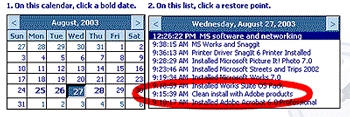
Figure 2: The System Restore calendar and list shows exactly what changes have been made to the operating system. Click to go back to a checkpoint that existed before any problems were discovered. Here, for instance, I can revert back to the last clean install I had of the computer with my Adobe products active but not the Microsoft Works products.
Windows Screen Shots
Years ago, when I had the Monorail computer, I used a product called Snaggit, from TechSmith to capture Windows screens. As soon as I got my new Gateway, I downloaded a copy of the current Snaggit. The current version is even better than I remembered. In addition to taking still shots of objects, regions, and menus, it does much more. I can capture movies, extended windows, multiple areas and objects, and Web capture. I can even take a shot of a dialog box and capture the text inside as editable text (see Figure 3).
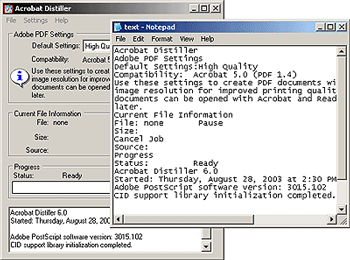
Figure 3: Using Snaggit, I can convert the text in any Windows dialog box into editable text. This text can then be easily added to my book layouts.
This is something that I have not seen in Macintosh screen shot products — not even my beloved Snapz Pro X. I wonder why no one has done this. After all if PDF is the basis of the Quartz screen engine, there has got to be some text inside each dialog box.
Windows Web Services
Another reason I had loved working with Virtual PC was that it used the Macintosh’s built-in Internet connection for Web services on the Virtual PC volume. So every once in a while I would be in a situation where I needed a Windows browser to do access a Web service. For instance, it took a while for my brokerage house to create a special Web entry page that would work on Macintosh computers. Until that happened, I would use Virtual PC to slowly navigate through those Web sites.
I was concerned, though, that I wouldn’t be able to get a Web connection using a real Windows machine. I didn’t know if I would need special software for my hub which was bought for my Macintosh machines. Fortunately, the same hub that allows my Macs to share my high-speed Web connection doesn’t care if I’ve got a Windows machine installed.
My Own Private Network
I was concerned about how to move my screen shots from the Windows PC over to my Mac on which I do all my production work. But all I had to do was run the Windows Networking Wizard (yuck, I hate that term, Wizard) and Windows set up my machine so that it would be visible over the network. Then, on the Mac OS X machines I simply chose Go> Connect to Server and the MSHome Network appears (see Figure 4). I can then connect to my Gateway machine as easily as I do to the other Macs on my network. Without OS X, though, this networking wouldn’t be as simple.
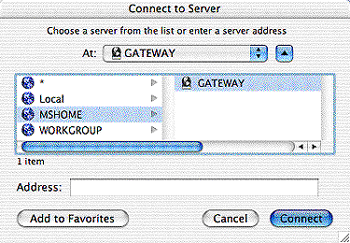
Figure 4: Thanks to the miracles of OS X networking, the Windows machine appears in the Mac Connect to Server dialog box.
Finding Font Info
One more pleasant surprise has been the information that is available when I double click a font file in the Windows Control Panel> Fonts folder. The Windows Font Viewer opens a very complete font display page with a type book-like display of the typeface. Even better, it lists details about the font such as whether or not the Open Type font is using TrueType or PostScript font outlines (see Figure 5). I find this useful because I would rather use the PostScript versions of Open Type fonts to make sure they are closer to the original Type 1 fonts that I have used for years. This minimizes the change of text reflow when I switch from Type 1 to Open Type fonts.
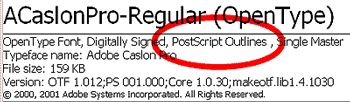
Figure 5: Windows Font View shows all sorts of details about the fonts installed in the Fonts folder. Here, I can tell if this OpenType font uses PostScript or TrueType data.
Becoming a Bi-Platform Gal
There are may things to like about Windows, I’ve decided. Certainly my Gateway’s relatively low price makes it easy for me to own both a Mac and a PC without breaking the bank. Another thing: Windows these days is sufficiently easy enough to use that I don’t pull my hair out every time I use it. Just as OS X has been a major improvement on the Macintosh platform, so has Windows XP made great strides for its platform. Anyone who hasn’t looked at Windows since Windows 95, should take a second look.
But as much as I enjoy my new Windows machine, my heart will always be on the Mac side of my desk. My fingers still feel more comfortable on a Mac keyboard. And even though I changed the white Windows cursor arrow to a black one, it still feels big and clunky. I worry more about viruses and security problems on the Windows machine. Finally, I don’t care what Microsoft thinks, a menu called “Start” is a terrible place to put the “Turn Off Computer” command.
Read more by Sandee Cohen.
This article was last modified on January 3, 2023
This article was first published on September 16, 2003
Commenting is easier and faster when you're logged in!

Recommended for you

SmileOnMyMac Updates PDFpen
SmileOnMyMac has added new link features to PDFpen 3.1, its PDF editing and form...
How to Customize the Ribbon in PowerPoint
Make PowerPoint work for you, by customizing the Ribbon, hiding tabs you don’t u...
