




When it comes to visualizing architectural space, there’s no better tool that a 3D modeling package. Unfortunately, most CAD and 3D modeling programs are so complex that they are completely impractical for quickly roughing out an idea in 3D. @Last Software’s SketchUp is a 3D modeling package aimed at architects and designers who need to quickly rough out 3D ideas, but don’t need the maniacal complexity of a CAD program, or the advanced features of a high-end 3D modeler.
SketchUp is ideal for architects, city planners, interior designers, movie and theatrical set designers — anyone who needs to easily create 3D visualizations and walkthroughs. What separates SketchUp from normal 3D/CAD programs is its unique tools that make it simple to create 3D shapes without having to think in terms of faces, extrusions, lofts, and lathes.
Flat-Out drawing
SketchUp is available for Mac OS X or Windows 98, NT, 2000, or XP, and a fully functional, time-bombed demo can be downloaded directly from sketchup.com.
SketchUp’s toolset is fairly simple, offering a Photoshop-like, two-column tool palette. Unlike most 3D programs, SketchUp provides a single-view drawing window. When you launch the program, you see a top-down view of your drawing space, and can immediately start drawing a “floorplan.” Later, as you turn your 2D floorplan into 3D space, you can spin and rotate your drawing space using a virtual trackball tool. Because SketchUp does not require high precision, and because of the clever design of the program’s tools, there’s no need for a multiple-view workspace.
The program’s 2D tools provide all of the requisite basic primitives including rectangles, circles, line segments, and freeform drawing tools. What makes SketchUp work so well is that these tools do a lot automatically. For example, corner points automatically snap together and lines are automatically constrained along regular axes.
SketchUp’s most impressive drawing features, though, are the visual cues that it provides while you are working. For example, if you draw a line segment and then want to draw an intersecting line through that segment, SketchUp will automatically highlight the mid-point as you pass your cursor over it.
Similarly, SketchUp provides automatic guidelines (called “Inference lines”) that appear any time your current line segment passes next to a control point on another line. These guides make it simple to draw shapes and control points in direct relation to other shapes and control points.
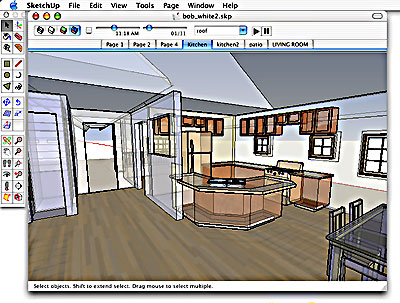 Figure 1: SketchUp’s interface lets you create complex 3D models quickly and easily using tools that are much simpler than those found in a typical 3D modeling or CAD program.
SketchUp provides many other automatic drawing aids. For example, if you want to draw a line parallel to another line, you simply click the first point of the line, then touch the mouse to the line to which you want to draw parallel. SketchUp will automatically constrain your new line to be parallel to the touched line.
These inferences and simple shortcuts actually provide a great deal of precision, but without the hassle of setting snaps and constraints by hand.
SketchUp is similar to Macromedia Flash in that, when you close a shape it automatically fills or “skins” to become a solid object. If you draw a line through that shape, the new line automatically slices the original shape into two new objects. These features mean that you can create complex geometry by drawing simple, rough primitives and then carving them into more complex shapes as needed.
Moving Up
When you’re ready to begin turning your 2D floor plans into 3D spaces, you need do nothing more than grab the Orbit tool to rotate your workspace to a better 3D vantage point. SketchUp’s Push/Pull tool can then be used to stretch any 2D shape into a 3D object.
The Push/Pull tool is where you’ll do the bulk of your 3D work. With it you can extrude all of your floor plans into 3D shapes. As you need to add complexity to a shape — cut a window into a wall, for example — you simply draw new profiles onto the shape’s surface and push or pull those new shapes to create indents and protrusions. You can use this technique to create staircases, cornices, windowsills, ledges — all of the architectural detailing that you need.
You can also use SketchUp’s 2D primitives to draw directly into 3D space. While you’re drawing, SketchUp automatically changes the color of your line to indicate when you are drawing along the Z-axis, or perpendicular to an existing surface.
SketchUp’s drawing aids and guidelines continue to work even as you draw in the third dimension, and the program is very good at intuiting which surface in 3D space you want to draw on.
The program is also very smart about understanding volume. If you cut a window in a wall, for example, you can select that window — an empty space — and copy and paste it into other parts of the wall.
Simply put, because of the program’s native intelligence about how shapes should fit together, and because of the on-the-fly visual cues, drawing in SketchUp is amazingly intuitive. It really feels like a 3D version of a simple 2D drawing program.
However, though we’ve been touting Sketch-Up’s ease of use, the program is quite capable of modeling very complex geometry. Though you wouldn’t want to try to model organic, complex curves, just about any architectural shape or feature can be modeled, including complex intersections and forms. Among SketchUp’s more advanced modeling features is the ability to import contour lines for generating terrain models, powerful Boolean features, and complex circular arrays.
Rendering
Though SketchUp is intended for generating 3D “sketches” it provides a fair amount of rendering power. You can apply photographic textures to any profile by simply dragging and dropping images from other applications. SketchUp supports a wide range of image formats including Photoshop, PDF, PICT, and PDF. In addition, SketchUp ships with a good library of basic building textures.
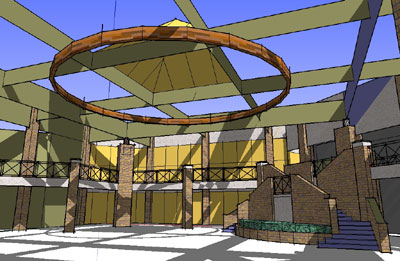 Figure 2: SketchUp lets you apply photographic textures to a surface, such as the bricks shown here, to allow you to create more realistic renderings.
Light studies can be easily performed by simply checking the Show Shadows button in the main document window. SketchUp objects can cast shadows on each other as well as upon the ground, and two simple sliders — one for time, and the other for day — let you animate the sun over the course of hours or months.
Because SketchUp is intended as a 3D sketching tool, it provides some unique rendering options. Lines can be made to jitter and their ends can be randomly extended to create a sketchier feel that integrates well with other media.
SketchUp provides a simple Page mechanism that lets you store camera positions, letting you easily switch from one view to another. As you change views, SketchUp animates the transition, allowing you to create simple walkthroughs and fly-arounds. Unfortunately, the program offers no mechanism for exporting these fly-arounds as QuickTime movies.
For moving your 3D scenes into other programs, SketchUp provides an Export facility that supports DWG, DXF and 3DS format. Import is limited to DXF, though importing and exporting of RIB files is provided through an optional free plug-in.
For high-quality printing, you can export wireframe and hidden line views of your scene as vectors or as PDF files. By exporting in PDF format, you can easily open your images in a drawing program like Adobe Illustrator to add further detailing.
Conclusion
@Last has succeeded in doing something very difficult: creating a 3D modeler that anyone can use. SketchUp is smart, powerful, well designed, and feature-rich. Though experienced 3D modelers won’t be replacing their high-end CAD programs and 3D animation packages with SketchUp, for the user who needs to create a visualization of a 3D space, or play with some 3D ideas, SketchUp is the ideal tool.
This article was last modified on December 14, 2022
This article was first published on January 14, 2003
Commenting is easier and faster when you're logged in!

Recommended for you

Getting the Most Out Of Cross-References
Learn the ins and outs of this useful feature to take your reader anywhere you w...

Make a Pinhole Panoramic Camera
Tutorial compliments of “Make:” magazine. Pinhole cameras have been...
How to Extract Colors from an Image in InDesign
Learn how to pull colors from an image in InDesign, make adjustments, then save...