




We start off with a simple lesson on how to link text from one text frame to another — and on the way, discover a pleasant advantage that InDesign has over QuarkXPress.
Linking two text frames
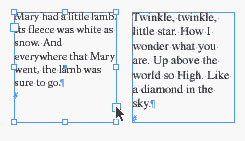
Linking text between two frames is easy. Unlike XPress, which uses special Link and Unlink tools, InDesign uses either the Selection or Direct Selection tools to link frames. Simply click the small outward bound link box on the right of a frame. This loads the cursor with the link information from the frame. Then move to the frame you want to link to. A link cursor indicates that the frames will be linked. Click to establish the link.

If there is more text than can fit in the frame, a red overflow symbol appears. Click the overflow symbol to load the cursor. Then move to the frame you want to link to and click to establish the link.

But what should you do if both frames contain text? In XPress 4, you have to copy the text in the second text box to a new text box, then establish the link, and then paste the text back into the linked text.
Imagine my surprise when I discovered that in InDesign all you have to do is click the link box or overflow symbol in the first frame and then click the second frame! The text automatically links and adjusts.
Read more On the Move to InDesign tips here.
Read more by Sandee Cohen.
This article was last modified on February 22, 2022
This article was first published on February 13, 2002
Commenting is easier and faster when you're logged in!

Recommended for you

Interview with Joy Pollard, Designer and Adobe Certified Professional
Learn how roller derby, astronomy, and theater influenced one designer’s journey...

Quick Wins: Adjusting Color in Photoshop
Use these five resources to get better at adjusting color in Photoshop

What’s New in Photoshop 27.10
The August 2026 release brings a range of new tools and techniques—plus a comple...