


Rediscovering Image Maps




Last month, we gave you some fascinating tips on using tables and graphics in your site design.
Along the way, you might have begun to think about image maps. After all, we’re all apt to think about image maps this time of year, aren’t we? They are a perfectly good alternative to using tables, and lack many of the problems you might encounter when working with tables. For one, you’re not restricted to rectangular links, so you can have more variety in the placement and shape of link graphics. You’re also not at the mercy of the browser to correctly align the graphics and the table cells. And we know how you hate to be at anyone’s mercy, much less a mere browser’s.
In this article, we’ll give you some information about designing image maps, using Figure A as our example. While we’ll employ ImageReady as our example application, there are many other applications perfectly suited to make image maps. Or, you could do it the way many Web designers still do–determine the coordinates in Photoshop and write the code yourself. This may take a bit longer, but you always get exactly what you want and you’ll get to earn your title of “Head Geek.” Plus, it’s a great way to pad those billable hours, not that you’d ever consider such a thing.

Figure A: We’ll show you how to transform this Photoshop file into an image map.
Defining the Map
An image map is a text file that contains numeric coordinates that correspond to regions of an image that you wish to define as a link. The coordinates are in the form of (x,y), just like you used to use in algebra or geometry (though we promise this won’t hurt nearly as much). X defines the horizontal position, while y defines the vertical position. If you have Photoshop’s Info palette open, you can see the x,y-coordinates of your mouse position. By moving your mouse to different positions around the graphic, you can easily determine the coordinates you need to define the image. It takes two coordinate positions to equal one point on the image map. To define a rectangular spot, you need two points. Once you know all your coordinates, you can place them in the image map to define the link area, as shown in Listing A. Some folks might think this number thing a bit confusing. If you find that’s the case, you’ll surely want to use a program like ImageReady that does all the ciphering for you, rather than an all-purpose tool like Photoshop.
<map name=”emery_map”>
<area shape=”rect” href=”cacti.html” coords=”64,254,192,424″>
<area shape=”rect” href=”trees.html” coords=”232,278,380,330″>
<area shape=”rect” href=”flowers.html” coords=”420,260,543,419″>
</map>
Listing A: This HTML code defines a simple image map.
A Little History
In the past, you’ve undoubtedly heard people refer to both client-side and server-side image maps. These days, you’d be hard-pressed to find any server-side image maps, due to their inherent inefficiency. In a server-side image map, the link information is kept on the Web page server and the viewer’s browser doesn’t see that link information. This means that when you move your pointer around on a server-side image map, it never changes into a hand. Coordinates appear at the bottom of the browser, but your browser can’t “see” the link, so you’re more or less guessing where it is. When you do click on something that is a link, your click coordinates travel back to the Web server, which says, “Ah, yes, we do have a link there,” and then the server takes you where you want to go. As you can imagine, this is a bit slow. As you can also imagine, server-side image maps caused people a lot of usability frustration. If your graphic link didn’t look like a button, there was no other indicator of its functionality.
In a client-side image map, the link information is in the HTML document. The browser reads it and your pointer changes into a hand as you move onto a link or hotspot. You can then click on the link and away you go.
When you hear someone speak of an image map today, they’re most likely talking about a client-side image map. And, while applications like ImageReady still give you the option of creating both server- and client-side image maps, you really don’t have to worry much about the server-side option.
Which to Use?
While we’re suggesting you only use client-side image maps, you may have heard conflicting information from other (less authoritative and distinguished) sources. The normal criticisms include the fact that client-side image maps aren’t as widely supported as server-side image maps, or that server-side image maps are the Web standard, and other such nonsense. Yes, it’s true that server-side image maps are more widely supported, but it’s sort of a silly statement. That’s because the only browsers that don’t support client-side image maps are old ones such as Netscape 1. This first generation browser probably doesn’t support the majority of the other items on your Web page, so the choice as to server- or client-side is moot. Nearly all of your viewers are using at least a 3.x version of browser software.
The Non-Major Drawback
There is a drawback to using image maps, but it can be easily averted. The people that surf the Web with text-only browsers can’t see them. In fact, they won’t even know you have links on your page. If you include a few text links just below your image map, the text-only people will still be able to navigate your pages. Also, you should always include the name of the link in the <alt> tag.
Preparing Your PSD File
Now that you have some background information on image maps, let’s start putting one together. Image maps are really easy to work with compared to slicing up an image for a table. You can see our original Photoshop file in Figure A. It’s a simple image, with only three links. Before we bring it into ImageReady, we need to make sure that it’s set up properly for ImageReady’s image map abilities.
Because ImageReady turns the opaque region of a layer into the image map’s links, you need to place anything that’s going to be a link on its own layer. When you do this, your Layers palette should look something like the one in Figure B. The cactus, flower, and tree links are all on their own layers. Besides the graphic, the rest of the layer is transparent, as shown in Figure C. If your graphics have feathered edges, be sure that the feather isn’t extending too far away from the graphic. Also, be sure that there are no stray pixels anywhere else on the layer. Besides the links, everything else in the image is on the Background. Once you have your file set up like this, save it under a new name, so as not to overwrite your original.
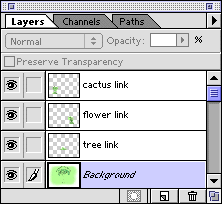
Figure B: Organize your Photoshop files so that your links are all on separate layers.

Figure C: If your links graphics are feathered, be sure there are no stray pixels anywhere else on the layer.
Jump to ImageReady
Your file should be all set now. To open it in ImageReady, choose File > Jump To > Adobe ImageReady. (If you don’t have your applications set up this way, you’ll just have to open the program directly. Bummer!) Your file opens automatically within ImageReady, while still being open in Photoshop. There are two different ways you can create an image map in ImageReady. First, you can select a layer that you want to turn into a link and then click on the Layer Options tab to view the palette shown in Figure D. (You can also choose Window > Show Layer Options/Effects to view the palette.) The name of your layer appears in the palette. Select the Image Map check box and then choose Rectangle, Circle, or Polygon from the Shape pop-up menu. If you choose Polygon, you can generate a custom shape for your link.
In the URL text box, enter a relative or absolute link. For some reason, the Photoshop 5.5 User Guide (a.k.a. ImageReady 2 manual) says to include the prefix https:// in the text box. Regardless of what the book says, you don’t want to do this if you need relative links. This is only done for absolute links. You can also choose a link from the URL pop-up menu, if you entered a list of preset links earlier.
A slightly faster method of creating the image map is to double-click on the layer name. You’ll bring up the Layer Options dialog box shown in Figure E. This method is actually a little better if you’re using Polygon link shapes, because you can set a Tolerance setting to specify how closely you want ImageReady to adhere to the link’s actual shape.
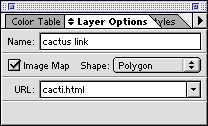
Figure D: The Layer Options palette lets you create the image map, create the shape, and attach a URL.
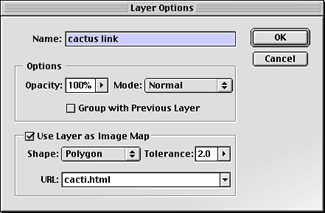
Figure E: The Layer Options dialog box gives you a little quicker access to the image map setup.
So What Happened?
After you’ve made all these changes, you’ll notice that nothing happened visually to your image file. You can’t see the link coordinates that were chosen, but you can look at the coordinates and test the functionality by choosing File > Preview In and then selecting the browser of your choice. You’ll notice that if you’ve used the polygon shape, you’ll have significantly more code than for the rectangle or the circle. If you like how everything looks, turn off the browser preview and then optimize your image as a GIF or JPEG. Next, choose File > Save Optimized. In the resulting dialog box, name your file and select the Save HTML check box. Then, click the HTML Options button. In the resulting dialog box, be sure that Client-Side is chosen from the Image Map pop-up menu. That’s all there is to it. Your graphic file and the HTML document will be saved and all will be fine in the world.
When Maps are Better
Image maps are an easy way to quickly add navigation to your site. They can take less time to make and they generate less HTML code than a complex table. And depending on the design and complexity of your Web site, they can be a great design strategy as well.

Copyright © 2000, Element K Content LLC. All rights reserved. Reproduction in whole or in part in any form or medium without express written permission of Element K Content LLC is prohibited. Element K is a service mark of Element K LLC.
This article was last modified on January 8, 2023
This article was first published on November 16, 2000
Commenting is easier and faster when you're logged in!

Recommended for you

An Open Letter to Steve Jobs
Dear Steve: Congratulations on the 20th anniversary of the Macintosh. All of us...

Heavy Metal Madness: An Era Thrown Into the Dumpster
Editor’s note: Gene Gable served as President of Seybold Publishing and Ev...

Using Adobe Stock with InDesign
Back in June, Adobe launched a new service for Creative Cloud users, Adobe Stock...