



I’m a huge fan of Adobe Bridge, the free “digital asset management” program that comes with every Creative Suite program. One of its best features is that it shows previews of InDesign layouts (the first page only) and InDesign templates (every page). That’s very handy when the filenames don’t tell you much about the file’s contents.
But what about outside of Bridge? I wish I could see previews of every file — including InDesign layouts — instead of just images and PDFs in the Finder/Windows Explorer or Open/Save dialog boxes. In InDesign’s Save/Save As dialog box, the “Always Save Preview” check box is a tease: it only refers to the file’s previews in Adobe Bridge; and nowhere else. (There’s a note in the Help file that a low-res PICT preview is also saved for the Mac OS Finder, but I can’t see it on my Mac Intel. Anyone?)
Well, it turns out there is a way to see previews of .indd and .indt (ID templates) outside of Bridge. Not in the Finder or Explorer, alas, but in the Open, Place, Import, Export, Save, or Save As dialog boxes of most Adobe Creative Suite programs. Just open the dialog and click the Use Adobe Dialog button (if you’re not seeing one, see the end of this post):

For most of these dialog boxes, being able to see layout previews is irrelevant (exporting out of Illustrator?) but it’s so great to see them in InDesign’s own Open/Save dialog boxes! (And, in CS3, in the Place dialog box … to choose the layout file you want to import.)
Here’s InDesign’s Open dialog box using the normal Windows OS version:
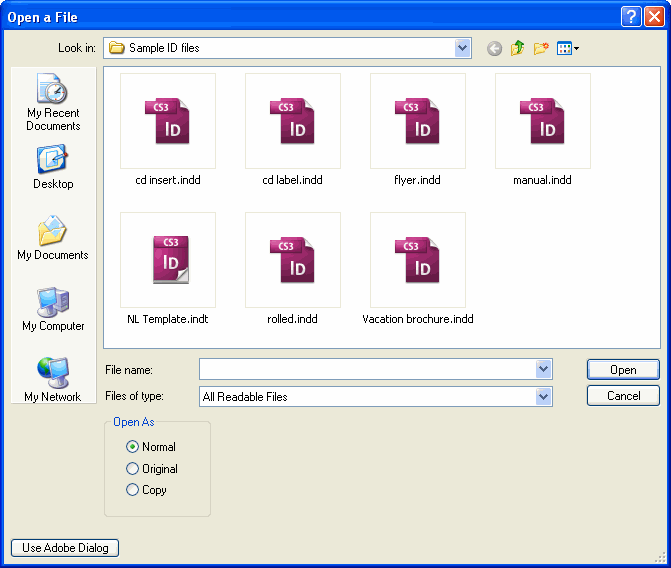
And the same dialog box after clicking the Use Adobe Dialog button:

Whoa, right? SO much better.
Also note the custom sidebar of favorites at the left of the window… especially useful in Windows, since users can’t customize the sidebar as Mac users can in the Finder. Regardless of your platform persuasion, in any Adobe dialog box you can right-click on a file or folder and choose Add to Favorites to get it to appear here. All the Adobe dialog box views in your Creative Suite programs will share the same Favorite settings. To get back to the “normal” Windows ones (My Documents, Network Places etc.); or to the Finder ones, click the Use OS Dialog button at bottom left.
If you’re not seeing previews after switching to the Adobe view, make sure your View menu, located at the far right of the dialog box, is set to either Tiles or Thumbnails:

… and give it a few seconds to build the thumbnails, longer if the folder has a ton of files. The next time you view the same folder, the thumbnails will appear immediately.
What’s Going on Here?
The Adobe dialog box primarily exists for Version Cue projects; note the Version Cue favorite in the sidebar. It’s a way for users to access VC project files and functions right from the program instead of going through Bridge. But you can use the Adobe dialog for any project, not just Version Cue ones. You don’t even need to have the VC server or client software running.
As long as 1) the program you’re running is part of a Suite install, and not a standalone program; and 2) you’ve turned on Enable Version Cue in your program’s preferences, you’ll get the Use Adobe Dialog option in its dialog boxes. (If you didn’t get the Suite, I think you only see it if you’ve been granted access to a shared project.)
InDesign, InCopy, Photoshop, Illustrator and Bridge should have “Enable Version Cue” turned on by default in each program’s Preferences > File Handling area. In Acrobat 8 you have to turn it on (look in Preferences > Documents); as well as in Flash CS3 (Preferences > General section). You don’t need to restart the program, the button should become available immediately.
Unfortunately it’s not available for Dreamweaver, Contribute or Fireworks; working with Version Cue in these programs requires using Bridge.
There are other useful things in the Adobe version of the dialog boxes; but seeing InDesign file previews is my favorite feature. (Second favorite is seeing large .AI thumbnails in my Place dialog box!)
This article was last modified on December 18, 2021
This article was first published on October 25, 2007
Commenting is easier and faster when you're logged in!

Recommended for you
Make a Quick Bar Chart (or an amazing geometric shape) with Transform Sequence
I love it when InDesign does stuff for me? not necessarily when it tries to...

Mac OS Utilities and Add-Ons I Love
InDesign doesn't live in a vacuum! You really should check out these Mac tools t...

Sizing Tables With a Script
Free script sets table properties that cannot be controlled by table styles, inc...