




[John Hawkinson is one of the top participants in the Adobe InDesign User Forum. He frequently helps users figure out what is causing crashes and hangs in InDesign. He has come up with a short guide to interpreting InDesign crash reports, which we reprint here with his permission. -Steve]
Step 1: Get the Crash Report.
On the Mac, this is easy. When the Adobe Crash Reporter pops up, click “Crash Data” (circled below).
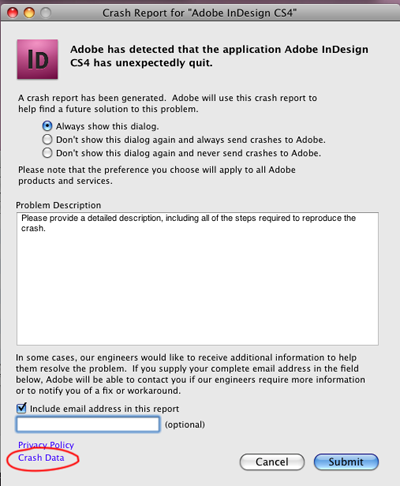
Adobe Crash Reporter
Under Windows, hit Windows-R and paste in “%AllUsersProfile%\Application Data\Microsoft\Dr Watson” and then open DRWTSN32.LOG. Windows just keeps adding new crash logs to that file, so go to the end and search backwards for “App: ” and make sure you’ve got the correct crash (InDesign.exe).
Step 2: Find the stack trace of the running thread.
The “stack trace” is a diagnostic that tells you what function was running in the program, and what function it was called from, what function the second function was called from, and so-on and so-forth until you get to the start first part of the program.
Under Mac OS X, it’s the 4th or 5th paragraph of the report, starting with “Thread 0 Crashed”:
Thread 0 Crashed:  Dispatch queue: com.apple.main-thread
0  ...esign.Package and Preflight    0x1ccb0267 GetPlugIn + 740919
1  ...esign.Package and Preflight    0x1cc3a9b2 GetPlugIn + 259458
2  ...esign.Package and Preflight    0x1cbdaed6 0x1cb41000 + 630486
3  ...esign.Package and Preflight    0x1cbde5b9 0x1cb41000 + 644537
4  ...esign.Package and Preflight    0x1cbe9dfc 0x1cb41000 + 691708
5  ...esign.Package and Preflight    0x1cbea1e5 0x1cb41000 + 692709
6  ...adobe.InDesign.AppFramework    0x1b8bfa81 GetPlugIn + 242241
7  ...adobe.InDesign.AppFramework    0x1b8c09ac GetPlugIn + 246124
8  ...adobe.InDesign.AppFramework    0x1b862838 0x1b860000 + 10296
9  ...adobe.InDesign.AppFramework    0x1b88800a GetPlugIn + 14282
10  com.adobe.InDesign            0x000028ab main + 187
11  com.adobe.InDesign            0x000027c6 start + 54
Under Windows, it’ll be a good 400 or 500 lines from the top, and is the first occurrence of “*—-> Stack Back Trace <—-*”. Make sure you get the first one, not a later one!:
*----> Stack Back Trace <----*
*** ERROR: Symbol file could not be found.  Defaulted to export symbols for C:\Program Files\Adobe\Adobe InDesign CS6\Plug-ins\PREPRESS\PACKAGE AND PREFLIGHT.APLN -
*** ERROR: Symbol file could not be found.  Defaulted to export symbols for C:\Program Files\Adobe\Adobe InDesign CS6\ObjectModel.dll -
*** ERROR: Symbol file could not be found.  Defaulted to export symbols for C:\Program Files\Adobe\Adobe InDesign CS6\Required\APPFRAMEWORK.RPLN -
*** ERROR: Module load completed but symbols could not be loaded for C:\ProgramFiles\Adobe\Adobe InDesign CS6\InDesign.exe
*** ERROR: Symbol file could not be found.  Defaulted to export symbols for C:\WINDOWSystem32\kernel32.dll -ChildEBP RetAddr  Args to Child
0012fbc4 078b9f8b 00002c00 00002be4 364a0e38 PACKAGE AND PREFLIGHT+0x79fdf
0012fbdc 078b9f8b 00002be4 00002bc8 364a0e38 PACKAGE AND PREFLIGHT+0x79f8b
0012fbf4 078b9f8b 00002bc8 00002b7c 364a0e38 PACKAGE AND PREFLIGHT+0x79f8b
0012fc0c 078b9f8b 00002b7c 00002b28 364a0e38 PACKAGE AND PREFLIGHT+0x79f8b
0012fc24 078b9f8b 00002b28 364a0e38 34f11fe8 PACKAGE AND PREFLIGHT+0x79f8b
0012fc3c 078ba54c 00000004 364a0e38 078bac65 PACKAGE AND PREFLIGHT+0x79f8b
0012fc6c 078bc59e 34f11fe8 2b552200 2b552200 PACKAGE AND PREFLIGHT+0x7a54c
0012fc84 078bc59e 2b7b05d0 05d12784 05d127a0 PACKAGE AND PREFLIGHT+0x7c59e
0012fc9c 078bc6b3 2b552200 05d127a0 05d127a0 PACKAGE AND PREFLIGHT+0x7c59e
0012fcb0 078bc7f5 0012fccc 2a5009c8 07ee97f8 PACKAGE AND PREFLIGHT+0x7c6b3
0012fce4 100128b9 05d12784 05be1b68 00013a01 PACKAGE AND PREFLIGHT+0x7c7f5
0012fcf8 1000d591 00000001 00013a59 05d12784 ObjectModel+0x128b9
0012fd18 007ea939 00000001 05d12784 00000000 ObjectModel+0xd591
0012fd40 10020cdc 00000000 0012fd74 007e5d3d Public!MultiControllingUnknown__~MultiControllingUnknown+0x49
0012fd4c 007e5d3d 00000001 06733db3 05d48248 ObjectModel+0x20cdc
0012fd74 06733948 0012fda0 05d442a0 05d48248 Public!MultiControllingUnknown__LastRelease+0xd
0012fdd0 06735572 05d442a0 05d48248 06733d90 APPFRAMEWORK+0x23948
0012fe0c 10018af6 00405454 024c5910 00000000 APPFRAMEWORK+0x25572
0012fe3c 1001a730 0012fe54 10003919 024c5910 ObjectModel+0x18af6
0012fe44 10003919 024c5910 07d763a0 0012ff2c ObjectModel+0x1a730
0012fe54 00401349 024c5910 00408678 00152349 ObjectModel+0x3919
0012ff2c 004038e6 00400000 00000000 00152349 InDesign+0x1349
0012ffc0 7c817077 80000001 00f7d2d4 7ffdf000 InDesign+0x38e6
0012fff0 00000000 00403a29 00000000 78746341 kernel32!RegisterWaitForInputIdle+0x49
Step 3: How Do I Read It?
Ignore the warnings/errors under Windows, that’s because you don’t have Adobe’s source code or symbols.
The first line with numbers is the function that crashed. The second line is the function that called it, etc., etc. Usually the module name of the function is enough to get you started.
On the Mac, that’s the first column, and under Windows it is in all caps in the last column (usually):
0  ...esign.Package and Preflight	0x1ccb0267 GetPlugIn + 740919
0012fbc4 078b9f8b 00002c00 00002be4 364a0e38 PACKAGE AND PREFLIGHT+0x79fdf
So in both cases, the module was “Package and Preflight.” On the Mac they all start with “com.adobe.InDesign”, but they get cut off so you only see the end. Under Windows you just get the module name (usually).
In this case, knowing that the problem was in the “Package and Preflight” module gives you enough information. If you weren’t Packaging your document, then the problem must have been Live Preflight. So turn off Live Preflight, meet you deadline, and then go submit the crash to Adobe Support.
Sometimes the module at the top of the stack isn’t the one at fault. Perhaps a routine to display a dialog box was passed a faulty piece of information to display by the previous routine. So you may want to look at more than the first line. This is especially true if the first line is an Apple or Microsoft routine that has been called by InDesign.
Sometimes the stack information is corrupt and either makes no sense or is very short. Nothing you can do about that.
Extra credit: the crashing function
Sometimes InDesign can tell you more than just which module crashed, it can tell you which function. But sometimes it won’t; it really depends on which function it was.
On the Mac, the function is the last column. First there’s the hex address of the function, followed by the name of the routine, and the offset within the routine.
Under Windows, that’s the same as where the module name is shown. If Windows can figure the name of the routine, it will not show you the module name in all caps.
For instance:
10 com.adobe.InDesign 0x000028ab main + 187
Means the function was 187 bytes into the main() function of the program. A crash here would be really unlikely.
Or a Windows example:
0012fd40 10020cdc 00000000 0012fd74 007e5d3d Public!MultiControllingUnknown__~MultiControllingUnknown+0x49
The crash was in a function called MultiControllingUnknown in a library called Public; it was 0x49 bytes in, or 74 decimal bytes.
If the number after the function is more than a few hundred hex, chances are it’s wrong. That happens when there are several functions right after another and InDesign knows the name of the first one, but not any of the others. These are examples of such bogus function names; the modules are correct, but not the function names:
0  ...esign.Package and Preflight	0x1ccb0267 GetPlugIn + 740919
0012fbc4 078b9f8b 00002c00 00002be4 364a0e38 PACKAGE AND PREFLIGHT+0x79fdf
But what if it’s a hang, not a crash?
Well, then you can turn your hang into a crash, and then analyze as above.
On the Mac, open the Activity Monitor application in the Utilities folder, then choose View > Send Signal to Process: Abort (SIGABRT). Your process will terminate.
Under Windows, hit Ctrl Alt Del and go to the Task Manager and go to the Processes tab. View > Select Columns and make sure that PID (Process Identifier) is checked. Find InDesign’s Process ID. then hit Windows-R and at the command prompt, type “drwtsn32 -p ProcessID” (replacing the Process ID). The process will keep running.
But what if I don’t get the Adobe Crash Reporter on the Mac?
Perhaps you’ve turned it off. Navigate to Adobe InDesign in the Finder, right-click on its icon, and choose Show Package Contents. Go to Contents/Frameworks/AdobeCrashReporter.framework/Required. Double-click on Adobe Crash Reporter.app. You’ll get the Adobe Crash Reporter Preference User. Choose “Always show this dialog.” Also, you can find the crash reports in Console.app.
This article was last modified on December 21, 2021
This article was first published on July 7, 2011
Commenting is easier and faster when you're logged in!

Recommended for you

Adobe InCopy CC Price Drop
Last week during the PePcon conference, I was speaking to a colleague who remind...

Three Ways to Make a Heart in Illustrator
Learn how to create a heart shape in Illustrator three different ways, using str...

CreativePro Magazine Issue 19 Now Available
CreativePro Magazine Issue 19 has articles on virtual photography, sales enablem...