


Drag and Drop Graphics into CC Libraries
You can drag and drop AI, PNG, BMP, PSD, SVG, GIF, JPG, JPEG, TIF, TIFF, and PDF files directly into a Creative Cloud library from the Mac Finder or Windows...


Due to some recent changes to CC Libraries you can now drag and drop images from the Macintosh Finder or Window File Explorer into a Library. This is a big deal. It enables you to quickly load AI, PNG, BMP, PSD, SVG, GIF, JPG, JPEG, TIF, TIFF, and PDF files directly into a library without having to first place them on a page in InDesign or open them in Photoshop or Illustrator.
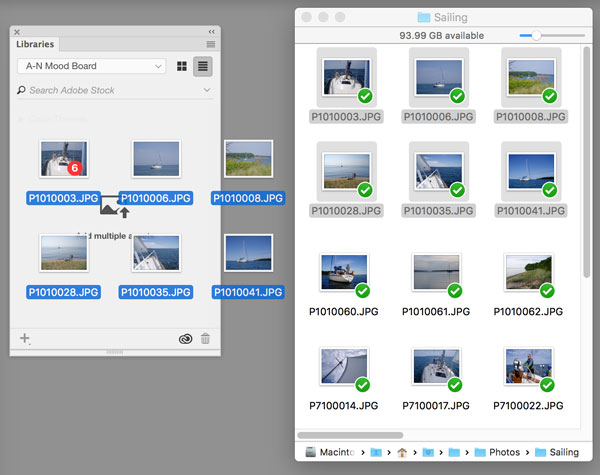
Drag and drop images from the Macintosh Finder or Windows File Explorer into the Libraries panel in InDesign.
In InDesign, if you right click on a graphic that you’ve put in a Library with this method, and choose Place Linked, the graphic will be linked to the asset in your Library. If the Library asset is changed later, the graphic will be updated on the InDesign page. If you choose Place Copy, the graphic is placed on the page as an embedded graphic.

This symbol indicates that the graphic is embedded in the InDesign file.
Quickly bring SVG images into InDesign
One side benefit of this is that it offers a quick way to bring SVG images into InDesign. Here’s how:
- Drag SVG images into the library panel in InDesign. (Here I’m using the AIGA Map Symbols).
- Wait a few moments until the images sync up to the cloud.
- Select one or more images in the Libraries panel, right-click, and choose Place Linked or Place Copy.

- Once the loaded place cursor appears, drag out a frame the size that you want (don’t just click with the cursor because the image will generate a huge frame).
Since InDesign can’t actually place SVG images, it converts the images on the fly into very-high-resolution transparent PNG images. It you want to make sure that the resulting image is high-resolution enough for your needs, select the image and look at the Effective ppi field in the Info panel (Window > Info).
What I’d like to see
Unfortunately, you can’t drag InDesign Snippet (.idms) files files into a Library with this method. This would be really useful for those who have large collections of saved snippets on their hard drive who want to quickly load those items into a library. If this capability would be helpful for you, vote for this feature request here.
This article was last modified on July 7, 2021
This article was first published on May 11, 2018
Commenting is easier and faster when you're logged in!

Recommended for you
Tip of the Week: Smart(er) Guides
Sign up for the InDesign tip of the week to get a new tip, roundups of new artic...
Tip of the Week: Fast Edit Original
The fastest way to open a placed image in another application for the purpose of...
Beware of Special Characters in CC Library Assets
A really nice way to keep vector logos and other frequently used items at your f...